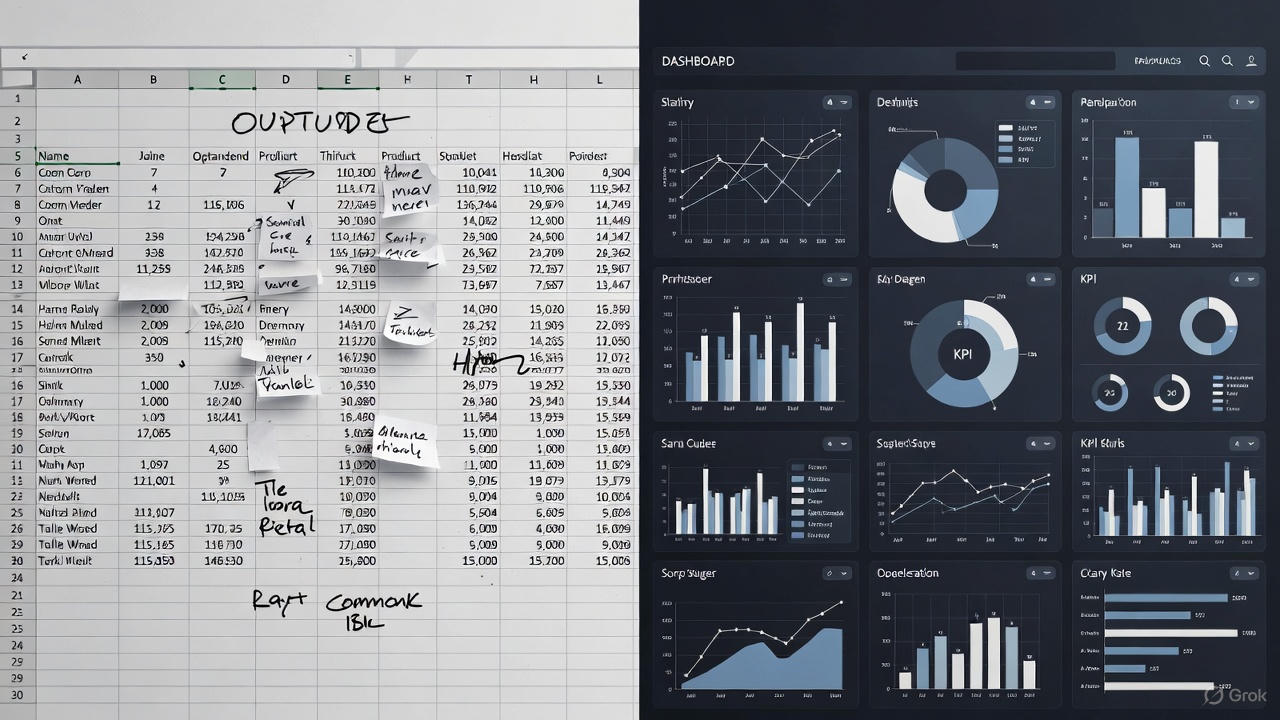


A step-by-step guide for FP&A teams, analysts, and finance leaders who want reporting that evolves automatically—without manual rebuilds every year.
Introduction
If your Power BI matrix still uses hard-coded year columns, you’re working harder than you need to. Every time a new fiscal year begins, your reports break, your visuals look outdated, and someone inevitably asks, “Can we get 2026 added here?”
Dynamic year columns solve all of that.
With the right data model and a few smart DAX techniques, you can build a Matrix visual that automatically updates—showing only the years relevant to your selection, your slicers, or your data. No manual editing. No rework. No version control drama. This guide walks you through exactly how to design a Power BI Matrix with dynamic year columns, from modeling fundamentals to the DAX you need to make everything flow seamlessly.
Why Dynamic Year Columns Matter in Finance
Static columns might work for simple datasets, but in FP&A, your data evolves every month:
- New Actual years get added continuously
- Forecast, Budget, and Long-Range Plan years shift
- Leadership wants rolling comparisons instead of fixed ones
- Reports must support hierarchies like Region → Business Unit → Location
- You need variance reporting to follow automatically
Dynamic columns allow you to:
✔ Automatically show years available in your model
✔ Add new years without touching any visuals
✔ Support multi-year reporting (Actuals + Budget + Forecast)
✔ Reduce manual maintenance to almost zero
✔ Prevent broken visuals during year rollovers This is how modern FP&A reporting should work.
Step 1: Reshape Your Data Into a Proper Star Schema
To make dynamic year columns work, your data must NOT be in a wide format like:
| Account | 2023 Actual | 2024 Budget | 2025 Forecast | … |
Instead, reshape into a long format:
| Account | Year | Type | Value | Location | BU | Region |
This structure gives Power BI the flexibility to pivot years dynamically.
You need two essential tables:
1. Fact Table (your financial values)
Columns:
- Account
- Year
- Type (Actual, Budget, Forecast, LRP, etc.)
- Value
- Location
- Business Unit
- Region
2. Date Table (Calendar)
Columns:
- Date
- Year
- Month
- Fiscal Period (if applicable)
Make sure:
- Year is numeric
- The Date table is marked as a Date Table
- It is related to your fact table via a date or year connection
Once this structure is in place, dynamic pivoting becomes effortless.
Step 2: Create a Dynamic Year Table
Instead of manually typing out year values, build a dynamic year dimension driven by whatever data exists in your model.
DAX
Years Dynamic =
DISTINCT ( ‘Fact'[Year] )
Or if you want a sorted, cleaner version:
Years Dynamic =
ADDCOLUMNS(
DISTINCT(‘Fact'[Year]),
“YearSort”, ‘Fact'[Year]
)
Use Years Dynamic[Year] as the column field in your Matrix.
Now Power BI will automatically show:
- Only the years loaded in your data
- Years in correct order
- New years as soon as data refreshes
Step 3: Create a Measure That Responds to the Selected Year
Your Matrix cannot rely on raw columns anymore. You need a Value Measure that picks the right value for each year column.
DAX
Value Selected =
CALCULATE(
SUM(‘Fact'[Value]),
FILTER(
ALL(‘Fact’),
‘Fact'[Year] = SELECTEDVALUE(‘Years Dynamic'[Year])
)
)
This measure now understands:
“You are in the column for 2024? Then fetch 2024 data.”
It will respond dynamically to:
- Year slicers
- Matrix columns
- Hierarchy drilldowns
Step 4: Add Variance Measures (Optional but Powerful)
Once your years become dynamic, variance calculations get much easier.
Example: YoY variance:
DAX
YoY Variance =
VAR CurrentYear = SELECTEDVALUE(‘Years Dynamic'[Year])
VAR PriorYear = CurrentYear – 1
RETURN
CALCULATE( [Value Selected], ‘Fact'[Year] = CurrentYear )
– CALCULATE( [Value Selected], ‘Fact'[Year] = PriorYear )
Rolling variance (Forecast vs Budget):
FCST vs BUD =
CALCULATE( [Value Selected], ‘Fact'[Type] = “Forecast” ) –
CALCULATE( [Value Selected], ‘Fact'[Type] = “Budget” )
Add these to the Matrix Values area and your columns will animate themselves based on context.
Step 5: Build the Matrix Visual
In Power BI:
Rows → Accounts, Region, Business Unit, Location (your hierarchy)
Columns → Years Dynamic[Year]
Values →
- Value Selected
- YoY Variance
- FCST vs BUD
Recommended Formatting:
- Turn off stepped layout
- Enable Show On Rows = Off for cleaner columns
- Add conditional formatting on variances
- Apply Finentis-style dark headers and subtle gridlines
- Use dynamic titles like:
“Financial Performance by Year (Auto-Generated)”
Step 6: Make the Matrix Update Automatically Each Fiscal Year
Your Matrix is now future-proof.
When next year’s data loads:
- No visuals break
- No new column creation required
- No manual edits
- No DAX rewrites
Power BI reads the Fact table → sees a new year → adds it as a new dynamic column.
Your FP&A reporting becomes self-maintaining.
Common Mistakes to Avoid
❌ Using a wide-format dataset with one column per year
❌ Hard-coding year values into SWITCH statements
❌ Creating separate measures for each year
❌ Ignoring the Date table
❌ Leaving year as text instead of numeric
Fixing these will immediately transform your reporting automation.
Conclusion
A Power BI Matrix with dynamic year columns is one of the easiest ways to modernize your FP&A reporting.
It removes manual maintenance, eliminates versioning issues, and makes your dashboards resilient as the business grows. This is the type of scalable, automation-first design that elevates finance teams from spreadsheet operators to insights creators.
If you want a fully built template—or want Finentis to build your automated FP&A reporting infrastructure—request a free consultation and get a blueprint tailored to your finance team.
Ready to Modernize Your FP&A Engine?
At Finentis, we help finance teams transform from ‘manual and reactive’ to ‘automated, analytical, and strategic’ using:
- Power BI & advanced analytics
- Power Automate workflows
- FP&A roadmap & operating model design
- Self-service reporting systems
- Scenario planning & forecasting frameworks
Let’s design the finance function of the future — today.
🗓️ Book a strategy call
Got a question for an automation project you are already working on? 🌐Ask Finentis